Schematic editing
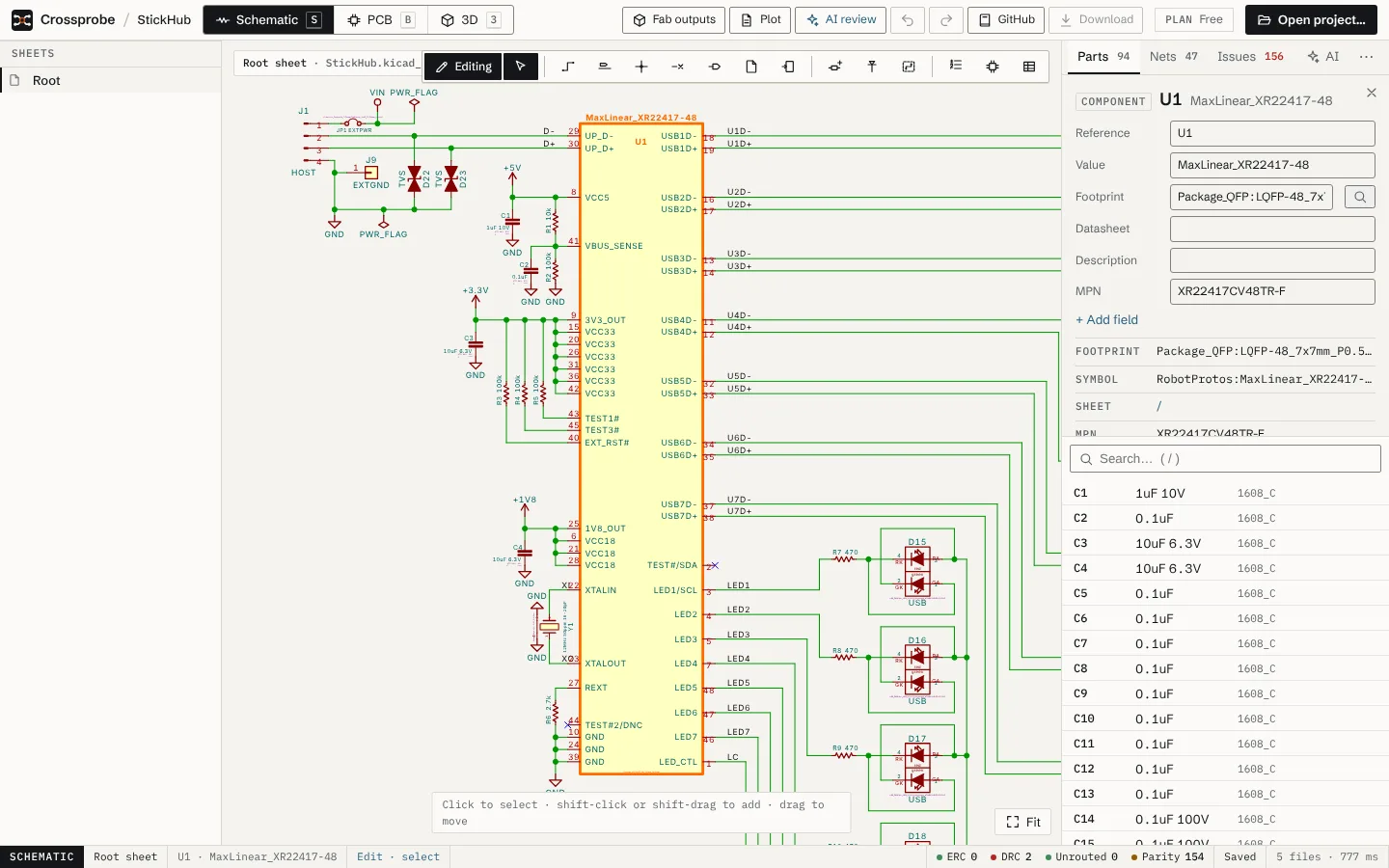
Press E or Edit above the schematic to start editing. Edits change only what you touch in the .kicad_sch, so KiCad opens the saved file as its own and git shows a small diff.
Edit mode
Outside edit mode, clicks only select and inspect. In edit mode the toolbar above the sheet shows the tools, and the line at the bottom of the drawing says what the current tool expects next.
With Select (Esc):
- Click to select. Shift-click or Shift-drag adds to the selection.
- Drag to move on the 50 mil grid. Wires attached to a moved part stretch along, as in KiCad.
- R rotates, X and Y mirror, Del deletes.
- ⌘C, ⌘V and ⌘D copy, paste and duplicate.
Nets, ERC, parity and the ratsnest are recomputed after each edit, so the Issues tab stays current while you draw.
Wires, labels, junctions and no-connects
- Wire (W): click to start, click to add corners, and end on a pin or double-click. Esc cancels. A wire can end on the middle of another wire, and T-joins get a junction automatically.
- Label (L): click a wire and type the label name.
- Junction (J): click to place one.
- No-connect (Q): click a pin to mark it as not connected. To flag many unused pins at once, use No-connect all on the unconnected-pin group in the Issues tab.
Place parts
- Choose Add part (A).
- Search by name, description or keyword, for example "ldo 3.3" or "R_Small". Results come in three groups: In this project, Project libraries (from the project's
sym-lib-table) and KiCad libraries. - Pick a symbol, then click on the sheet to place it. Esc stops placing.
Placing copies the symbol into the sheet in KiCad's embedded form, with derived symbols flattened.
Power (P) works the same way for power symbols, with one-click buttons for common ones such as GND, +3V3, +5V and VCC, and for PWR_FLAG, which tells ERC that a net is driven by a power source.
Fields and footprints
Select a part in edit mode, and the inspector shows its fields: Reference, Value, Footprint, Datasheet, Description and any others the symbol has. Edit a value and press Enter or leave the box. Changing the reference updates the reference of each instance of the part. + Add field adds a field such as MPN or Manufacturer.
The search button beside Footprint opens a chooser filtered by the symbol's footprint filters and pin count, with a pad preview. It shows the footprints the project already uses for that symbol above the list, and can apply the choice to other parts of the same symbol that have no footprint yet. Footprints in the toolbar opens Assign footprints, a table of every part with the count still missing.
Hierarchical sheets
- Sheet (⇧S): drag a rectangle to add a sub-sheet. A new sheet file is created.
- Sheet pin: click a sheet's edge and name the pin. A matching hierarchical label is added inside the sheet.
- Hier. label (H): click to place a hierarchical label, which connects to a sheet pin in the parent.
Open a sheet from the Sheets tree on the left.
Annotate
Annotate in the toolbar offers:
- Number new parts (R? → R14): numbers only unannotated references, from the next free number.
- Renumber all, left to right or Renumber all, top to bottom: renumbers everything, sorted by sheet and then by position.
Annotation is one edit, so one undo reverts it.
Undo, redo and save
⌘Z undoes and ⇧⌘Z redoes, up to 100 steps. The undo and redo buttons in the top bar name the edit they will reverse.
⌘S or Save writes the changed files. In Chromium-based browsers a folder you opened is saved in place. Other browsers can't write folders, so the button reads Download and downloads the changed files instead. A new project asks for a folder on its first save, or downloads a zip. The button's count shows how many files have unsaved changes.
Unsaved changes survive a page reload. The app reopens them with a banner offering Discard changes or Keep. Undo history is not kept across a reload.
Next: bring the changes to the board with Update PCB from schematic.