Zones and pours
Draw a copper zone on any copper layer, give it a net, and refill with B. Fills follow KiCad's rules and are written back in the form KiCad saves them.
Draw a zone
- In edit mode on the PCB view, choose Zone.
- Choose the zone's net in the Net for new zones menu, or (no net).
- Choose the layer in the Routing layer menu.
- Click to add corners. Finish by clicking the first corner, double-clicking or pressing Enter. Backspace removes the last corner and Esc cancels.
The hint line shows the net and layer of the zone you are drawing.
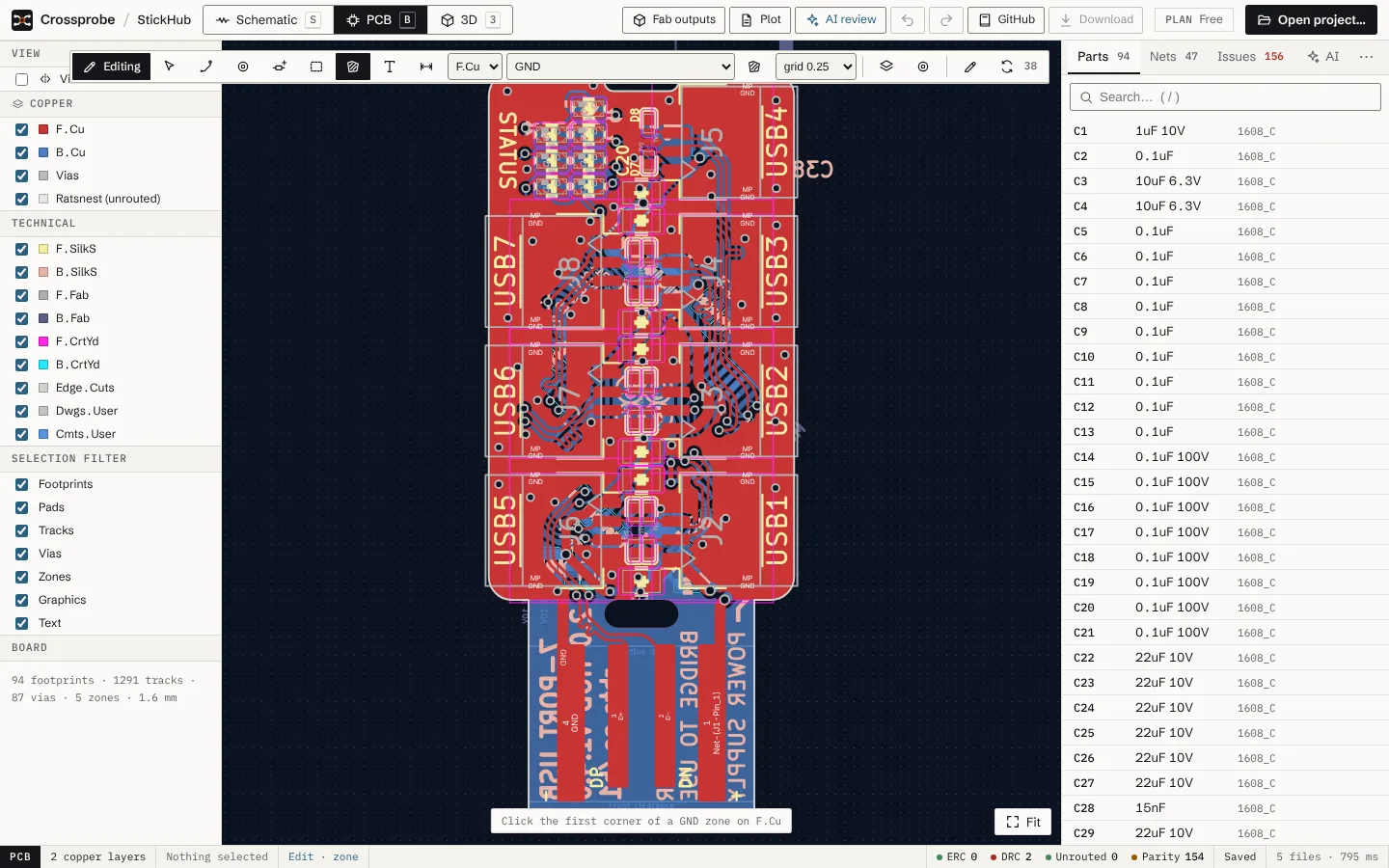
Pour the whole board
With Zone chosen and a board outline in place, Whole board adds a zone that covers the whole outline on the current layer. This is the quickest way to a ground pour. For a pour on both sides, run it once per layer.
On a four-layer board, a whole-board zone on an inner layer works as a plane. When another net's pour covers at least half of an inner layer, Route all keeps the other nets' tracks off it and vias pass through.
Zone properties
Select a zone to edit it in the properties panel:
- Net: the net the zone connects.
- Layer: the copper layer it is on.
- Pads: how pads of the zone's net join it, KiCad's pad connection setting:
- Thermal reliefs
- Reliefs for through-hole only (SMD solid)
- Solid
- None
Fine-pitch pins often can't take two thermal spokes. Choosing solid connections for SMD pads avoids starved thermals.
Refill
When fills are out of date, the Refill button in the toolbar is highlighted. Press B, choose Refill, or right-click an empty part of the board and choose Refill zones.
A refill follows KiCad's rules:
- The zone is clipped to the board outline, minus the copper-to-edge clearance.
- Other nets' copper is knocked out with its clearance: pads, tracks, vias, holes, copper graphics and text, higher-priority zones and keepouts.
- Pads of the zone's net get thermal reliefs or a solid connection. A spoke is kept only where it reaches the fill.
- Necks under the zone's minimum thickness are removed, and islands are dropped as the zone's setting says.
Copper is never closer than the rule allows. KiCad's demo boards, refilled here, pass KiCad's DRC with no new zone violations. Hatched zones and teardrops keep the fills KiCad saved.
Note: stale zone fills are a common beginner mistake. Fab outputs checks that fills are current and offers Refill now if they aren't. See Fabrication outputs.
Zones and routing
Zones are not obstacles for the router or for Route all. They are refilled around new tracks afterwards. Route all leaves nets that have a pour to the pour, adds vias from fine-pitch ground pins into it, and stitches pads the pour doesn't reach to a pour on another layer.
To stitch by hand, use the Via tool: a via placed on a pour takes the pour's net. See Routing.